Set a location geofence
A geofence requires a student's phone to report a location within a set distance of the room before it will accept their check-in.
It is optional and off by default.
Turn it on
In the start dialog:
- Switch on Require Location.
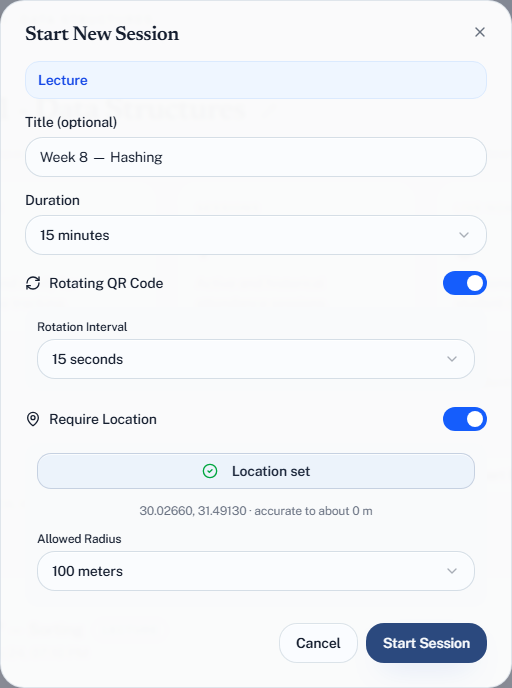
- Choose Use My Current Location. Your browser asks for permission; allow it. The button changes to Location set, with the coordinates and how accurate the fix is.
- Pick an Allowed Radius — 50, 100, 200 or 500 metres, or 1 km. The default is 100 m.
- Choose Start Session.
Start Session stays disabled until you have pressed Use My Current Location — the fence has to be centred somewhere.
Quorum takes the location from the device you press the button on, so do it while you are standing in the room, not from your office.
If Quorum warns that your location is too coarse
A laptop usually locates itself by Wi-Fi or IP address, and can be hundreds of metres out. When the accuracy it reports is wider than the radius you chose, the dialog warns you before you start — because otherwise you find out when the whole room is refused at once.
Either press Use My Current Location from your phone instead, or choose a larger radius.
Choosing a radius
The instinct is to make it tight. Resist it — phone GPS is not that accurate, especially indoors, and a fence tighter than the error margin rejects students sitting in front of you.
| Radius | Realistic for |
|---|---|
| 100 m (default) | One building. A sane starting point |
| 200 m | Large halls, thick walls, weak indoor signal |
| 500 m – 1 km | A campus, or a laptop-set location you cannot improve on |
| 50 m | Rarely worth it — expect false rejections |
Indoors, a phone often falls back to Wi-Fi and network positioning, which can be tens of metres out on a good day. The fence you want is one that excludes people at home, not one that distinguishes the third row from the fourth.
Start loose. A radius that quietly rejects real attendees is a worse problem than one that would have accepted someone in the corridor, because you will not find out about it until a student complains.
What happens when someone is outside it
They are refused, with:
You are outside the allowed area for this session. Your attempt has been recorded.
That second sentence is literal. Out-of-range attempts appear in the session's Violations tab. Open one and you get its detail page: the distance, the allowed radius, how far over the limit it was, how accurate the phone said its fix was, and a small map of the student's position against the allowed area. So you can see whether someone was 30 m away in the corridor or 4 km away at home. Those two are not the same event and the record lets you tell them apart.
When a phone sends no location
A student whose phone gives no position at all — location blocked, switched off, or too slow to load — is refused with a message saying which of those it was. See When a check-in fails for each one.
That is not recorded as a violation. Nobody was measured, so there is nothing to hold against the student; they fix their location settings and scan again.
Before 22 September 2026, a check-in with no location was logged as out of range at 0°, 0°. If an older session shows one, its detail page says so — the student was almost certainly not outside the area.
What a geofence actually proves
Location is a deterrent, not evidence. Coordinates come from the student's browser, and a determined student can supply false ones. The geofence raises the effort required; it does not make presence certain.
Treat it accordingly:
- Good use — discouraging casual remote check-ins by someone who is not going to install a spoofing tool over one lecture.
- Bad use — as proof in a disciplinary case. It cannot carry that weight.
The device controls are the stronger signal, because they catch the common real-world case: one student in the room checking in three friends who are not.
When to leave it off
- Any session where some students legitimately attend remotely.
- Buildings where you already know GPS is unreliable.
- Small classes where you can see who is present anyway.
There is no shame in running without it. Rotating codes and device identity do most of the work.