Run a live session
This is the thing you will do two or three times a week for a whole term. It takes about fifteen seconds once you know where the buttons are.
Start it
- Open the group and choose Start Session.
- Set the options below — or take the defaults, which are sensible.
- Choose Start Session in the dialog. The live screen opens straight away.
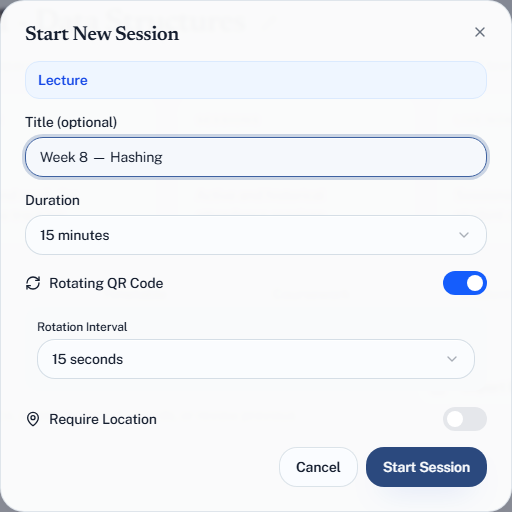
The options
| Option | Default | Choices |
|---|---|---|
| Title (optional) | None | Free text. "Week 7 — Sorting" beats an untitled session in March |
| Duration | 15 minutes | 5, 10, 15, 20, 30 or 45 minutes, or 1 hour |
| Rotating QR Code | On | With a Rotation Interval of 5, 10, 15, 20, 30 or 60 seconds (default 15) |
| Require Location | Off | A geofence, if you want one |
There is no category option. The badge at the top of the dialog shows what the session will be — Lecture when you start it as an owner, Tutorial when a TA does. See Lectures and tutorials.
Duration is the one people misread. It is the check-in window, not the length of the class. Fifteen minutes at the start of a lecture is usually right. Setting it to a full hour means a student can wander in near the end and still be marked present.
If you see You need students in this group before you can start a session, the group is empty. See Add students.
Put the code where it can be scanned
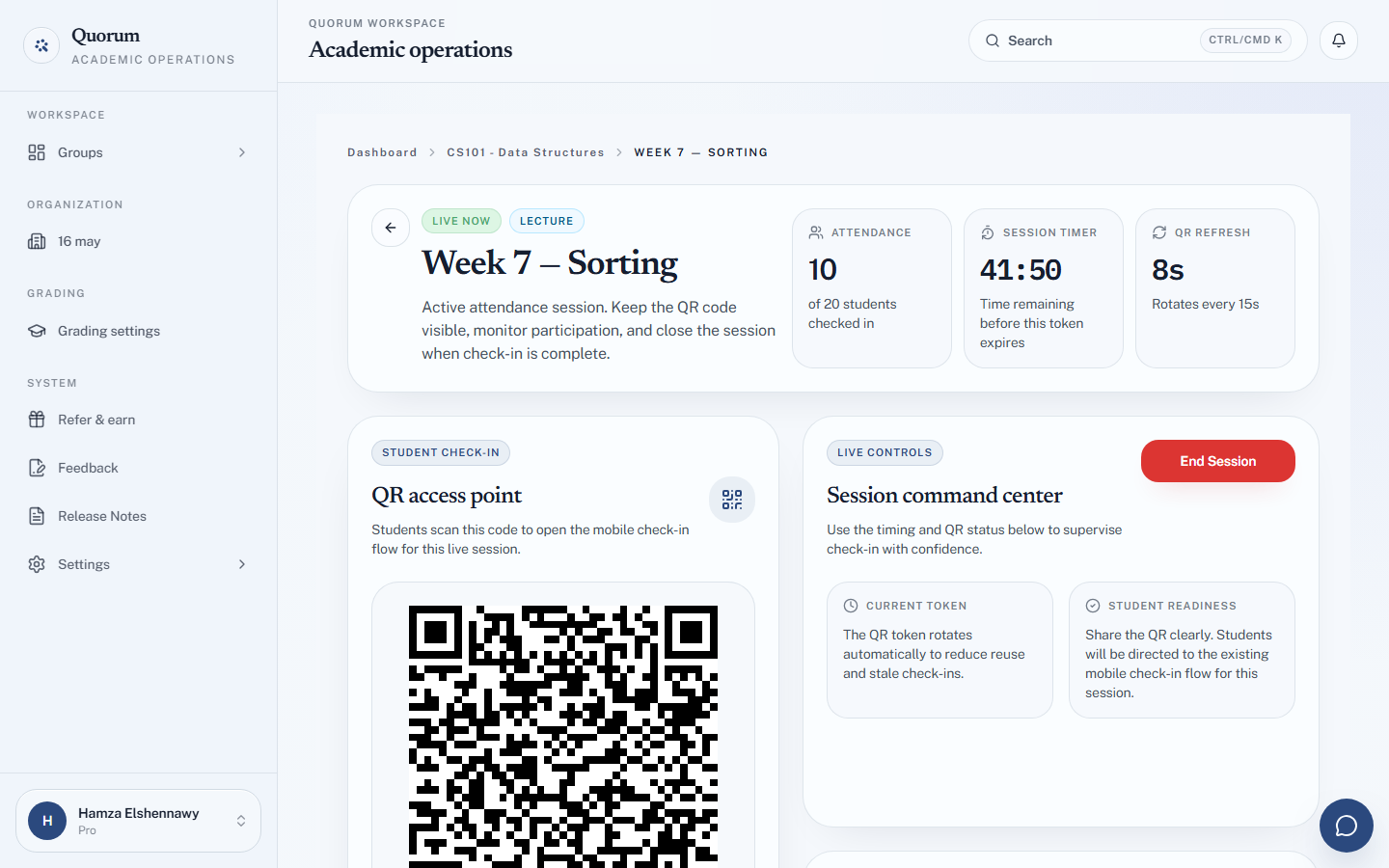
The live screen shows the QR code with three live readouts beside it:
- Attendance — how many of the group have checked in so far
- Session timer — how long check-in stays open
- QR refresh — a countdown to the next code, when rotation is on
For a real room, choose Show QR Full Screen. It switches to a projection view — the QR code alone, sized to be scanned from the back row. Press Esc to come back. Use it: a code sized for your laptop is not a code the back three rows can read, and you will spend the next five minutes with a queue at the front.
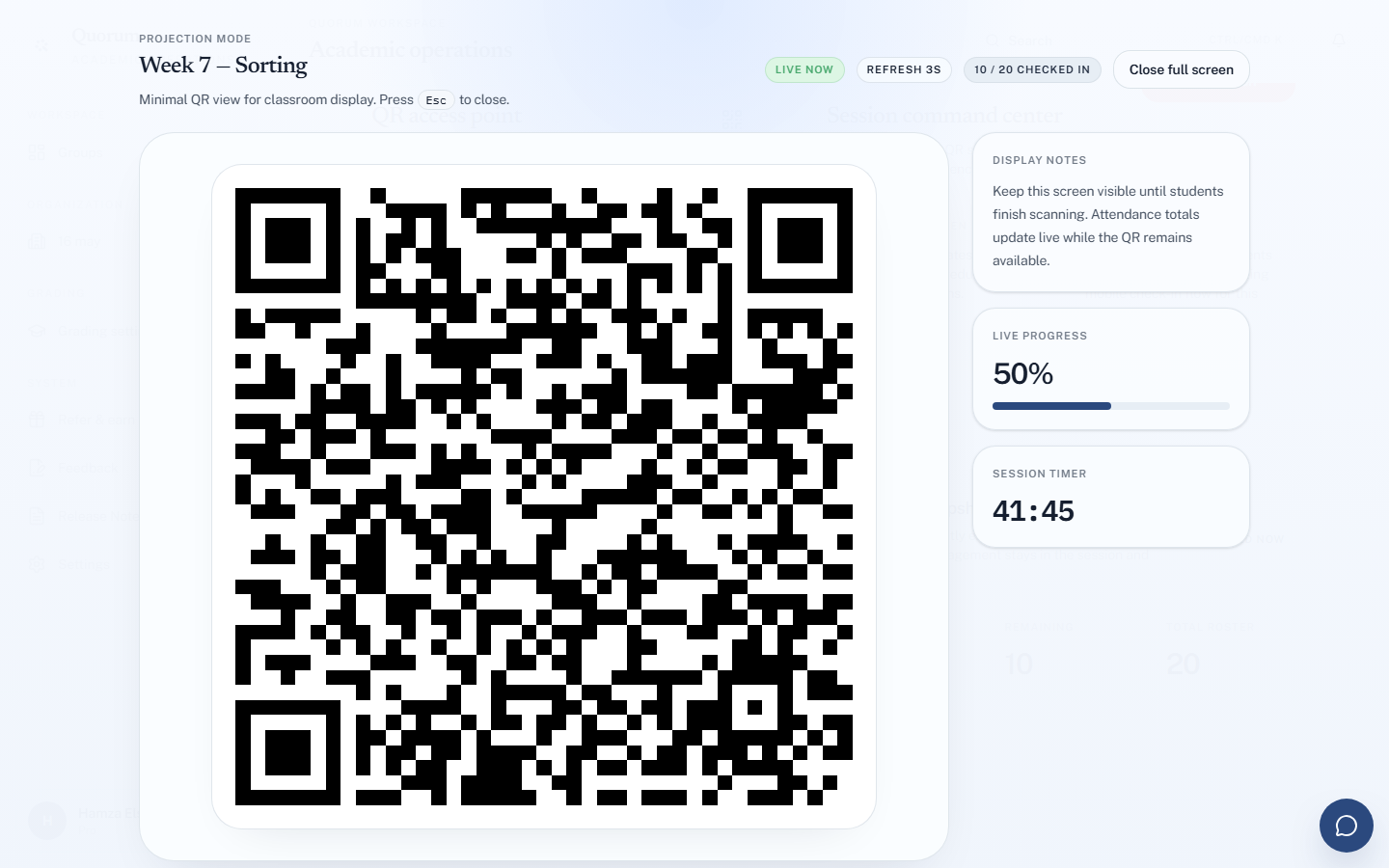
Keep the screen up until scanning finishes. The code keeps rotating and the count keeps updating the whole time.
Watch it happen
The attendance count updates live as students scan. This is your signal that things are working — if it is stuck at zero thirty seconds in, something is wrong and When a check-in fails is the page to open.
The live view deliberately shows totals and timing, not a name-by-name roster. Detailed attendance lives on the session record afterwards, where you can look at it properly instead of squinting at a projector.
Quick Session
From the dashboard, a group card offers Quick Session — it starts a 15-minute session with a code that rotates every 15 seconds, skipping the dialog entirely.
Use it when class has already started and you want the code up now. Everything else can be adjusted afterwards.
Finish
Choose End Session when scanning is done. It ends at once — there is no confirmation step. See End a session.
If the projector fails
Do not lose the class over it.
- The rotating code works on any screen. Holding up a laptop works for a small room.
- Or run the session and fix the record afterwards with manual overrides. A session with everyone marked by hand is still an accurate session.