What your students do
Students do not have Quorum accounts and never sign in. This page describes their entire experience — feel free to forward it to a class before the first session.
Checking in to a Quorum session
1. Scan the code on the screen. Use your phone's camera. A page opens in your browser. There is nothing to install and no account to create.
2. Enter your university ID. Type it exactly as your university issues it, including any leading zeros. This is how your instructor's list identifies you.
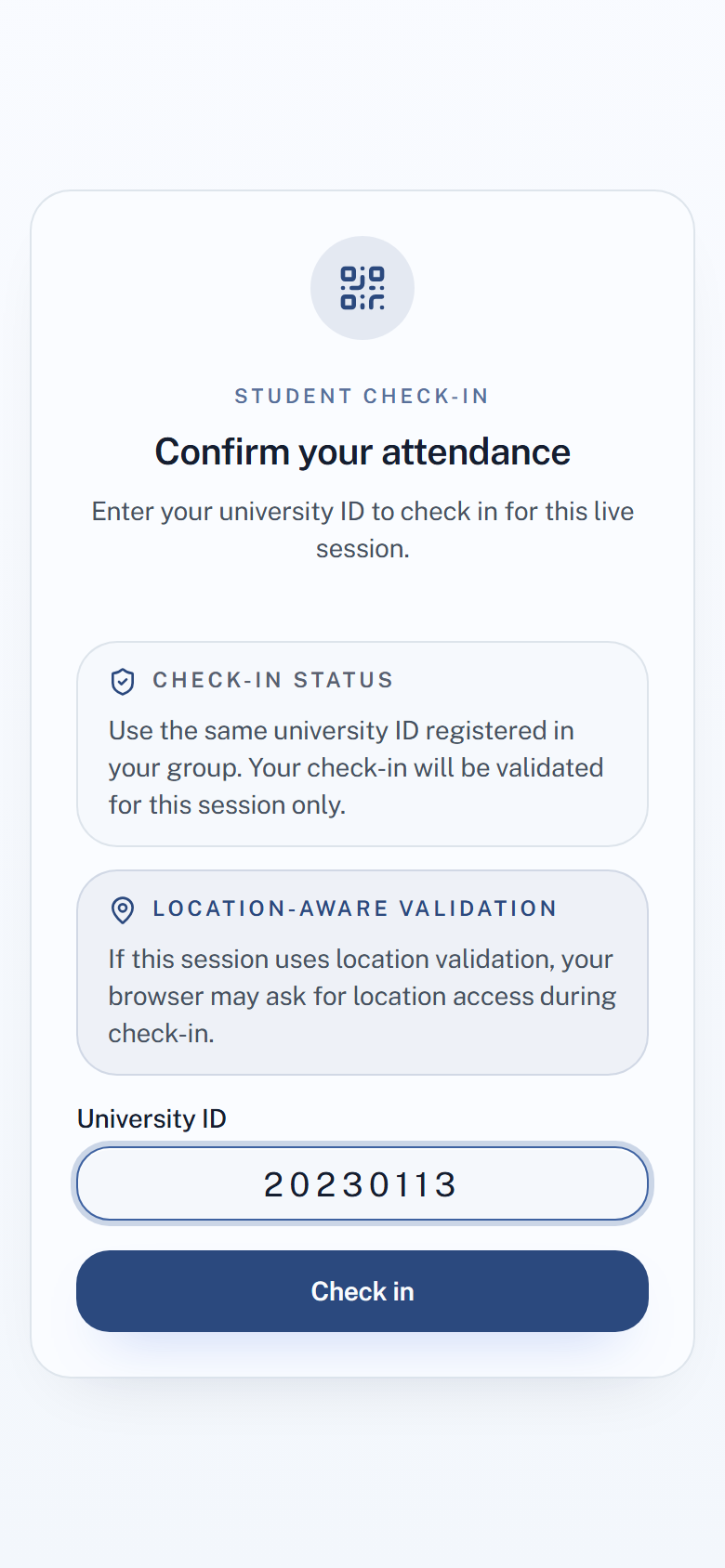
3. Allow location, if asked. Some sessions check that you are actually in the room. If your browser asks for location, allow it — check-in cannot complete otherwise. If it says your location is blocked or took too long, fix that and scan again; that kind of failure is not held against you.
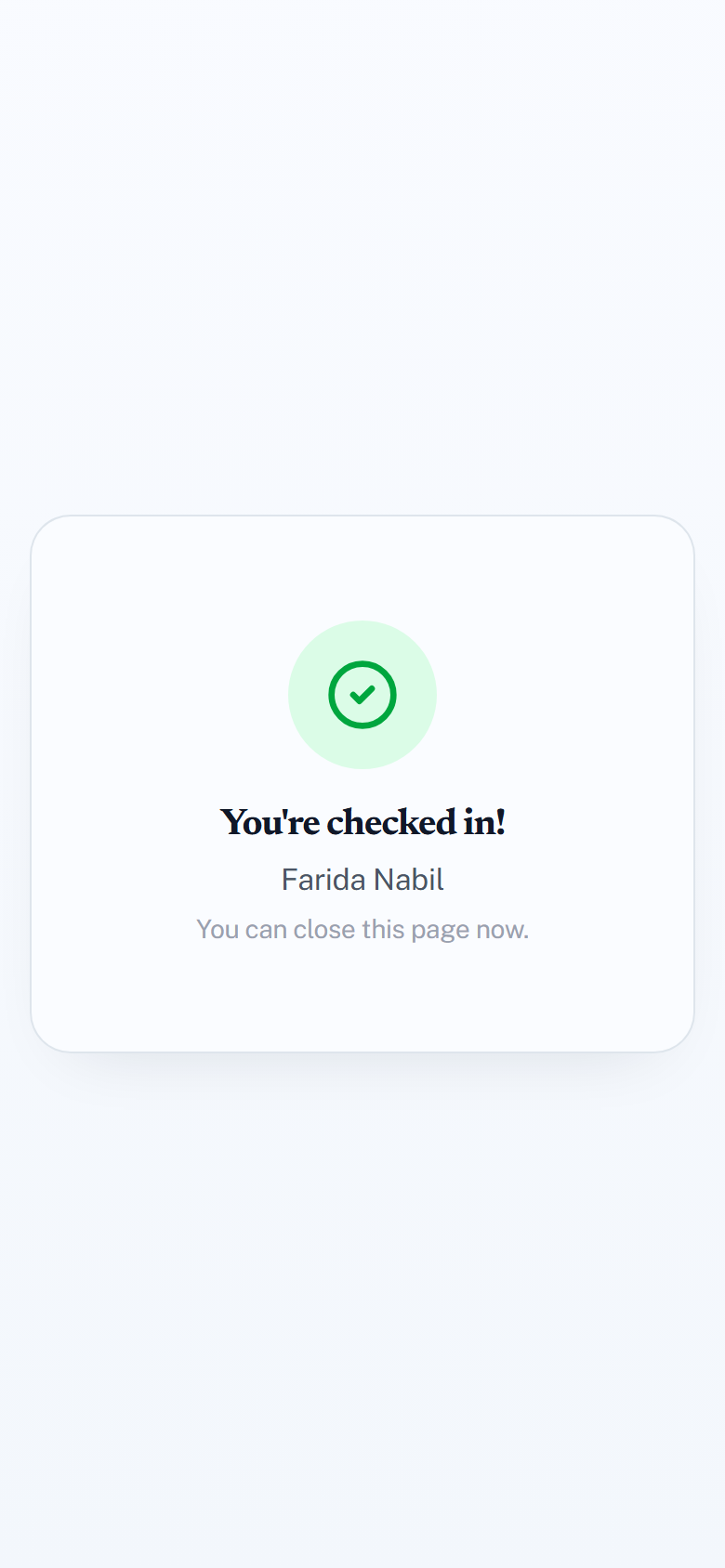
4. Check that it worked. You should see You're checked in! If you see anything else, you are not checked in — read the message and tell your instructor now, while the code is still on screen.
Things worth knowing
- The code changes every few seconds. A screenshot sent to a friend will not work by the time it arrives.
- One phone, one student. Once a phone has checked someone in, it cannot check in anyone else in that session — the attempt is refused and recorded, and both of you appear in your instructor's report.
- "A device similarity was flagged for review" after a successful check-in means your phone looks like one that already checked in a classmate. You are checked in; your instructor just gets a note to look at it.
- Use your normal browser. Private or incognito windows interfere with the check-in, and a browser that cannot be identified is refused.
- Failed attempts are recorded too, including attempts from outside the allowed area.
The check-in screen appears in the student's own language — English or Arabic — independently of yours. Quorum takes it from the language they last chose on Quorum, then from their phone's language, and for a phone set to neither, from whether they are in Egypt.
One rough edge: the messages shown when a check-in fails come from the server in English only, even when the rest of the page is in Arabic. Arabic-speaking students will see an English sentence explaining what went wrong. Worth a word of warning to a class that would not expect it.