Create an assessment
Create one
- Open the group and go to its Coursework tab.
- Choose New Assessment.
- Fill in the Create Coursework Item dialog — the fields are below.
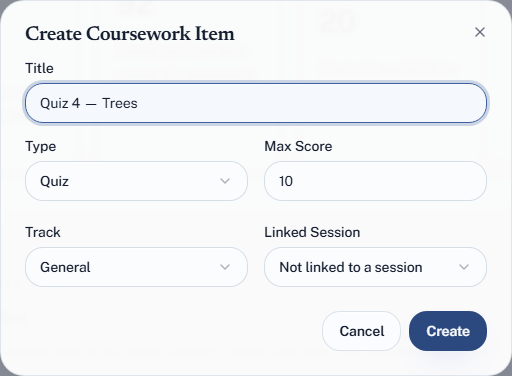
The fields
| Field | Notes |
|---|---|
| Title | What you will recognise it by later. "Quiz 3 — recursion" beats "Quiz 3" |
| Type | One of the eight kinds. Decides which breakdown category it feeds, and whether it can become an exam |
| Max Score | What a perfect answer is worth. Starts at 10 |
| Track | General, Lecture or Tutorial — which strand of the course it belongs to |
| Linked Session | Optional — tie it to a specific session |
There is no date field. An assessment linked to a session takes its place in the term from that session; one that is not linked is simply listed.
Max score
Set it to the marks you will actually award. If a quiz is out of 10, set 10 — do not set 100 and mark everyone out of ten.
The number does not need to match its importance. Weighting is the breakdown's job, so a 10-mark quiz can carry as much course weight as a 100-mark final if that is your design. Use max score for marking convenience and weight for importance.
Changing max score later does not rescale grades already entered. A student marked 8 stays on 8 whether the maximum is 10 or 20 — so if you change it, check the marks.
Tying it to a session
Optional, and worth doing when the assessment actually happened in a class.
It gives you a quiz that sits with the tutorial it was set in, so a term's coursework reads in the order it occurred rather than as a flat list. Left untied, an assessment shows as Not linked to a session, which is correct for homework and take-home work.
The tie is a record of where it happened. It does not affect grading. The session's own record shows it on its Coursework tab.
Many assessments from one session sheet
If you marked a tutorial on paper and have the marks in a spreadsheet, open the session instead and use its Coursework tab: Upload Sheet takes an Excel or CSV file, and every numeric column you pick becomes its own assessment, already linked to that session and already graded. Give each a title, type and max score before importing.
After creating
The coursework register shows each assessment with its grading coverage — how many students are marked — its max score, and its linked session. Coverage is the useful column: it tells you at a glance which assessments still need marking.
Deleting
Deleting an assessment deletes all of its grades with it, and Quorum names the assessment in the confirmation so you can be sure of what you are removing.
There is no undo. Only owners can delete an assessment — a TA cannot. If you created something in error, delete it before marking; afterwards you are throwing away work.