Enter grades
Mark an assessment
- Open the group's Coursework tab.
- On the assessment's row, choose Manage.
- In the grade table, type each student's Score. Leave a box blank for a student you have not marked.
- Choose Save Grades.
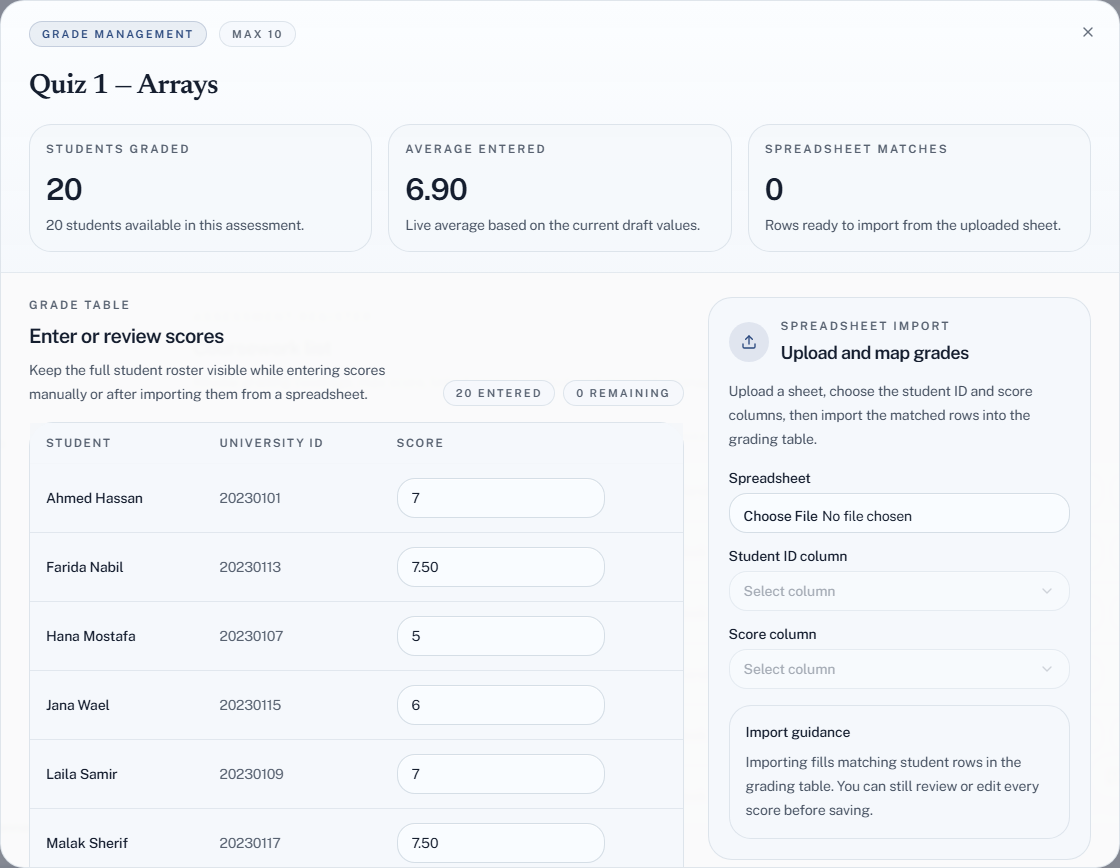
A score is a number out of the assessment's max score. Decimals are fine, so half marks work without changing the maximum. A score above the maximum is refused before anything is saved, naming the student, so a typo like 80 on a quiz out of 10 cannot slip through.
Import grades from a spreadsheet
If the marks are already in a sheet — your own, or one a TA sends you — import them instead of retyping:
- In the same dialog, under Spreadsheet import, upload the Excel or CSV file.
- Pick the Student ID column and the Score column.
- Check Sheet readiness: how many rows loaded, how many are ready to import, and how many were ignored because the ID is not in the group or the score is not a number.
- Choose Import Into Table. The matched scores fill the grade table.
- Review them, then choose Save Grades.
Nothing is saved until step 5, so a wrong column choice costs you nothing — pick again and re-import.
Ungraded is not zero
A student you have not marked is ungraded — a different state from scoring zero, and the distinction matters:
- Ungraded — no mark yet. Work not handed in, absent from the quiz, still being marked.
- 0 — marked, and got nothing.
The coursework register's coverage figure counts graded students, so you can see what is outstanding without opening each assessment.
Decide what a non-submission means in your course, and enter it. Leaving it ungraded so it "does not count" quietly changes what the student's percentage is measured against.
Marking a class efficiently
- Work down the list in the order your papers are in, rather than searching for each name.
- Enter every student in one pass, including the zeros, then check coverage reads the full class.
- If you are interrupted, coverage tells you where you stopped.
Fixing a mark
Type the new score over the old one and save. Every mark entered, changed or cleared is written to the group's activity log with who did it and what it said before — so when a student disputes a mark, you can see exactly when it changed and from what.
Exams mark themselves
Where an assessment is delivered as an exam, its questions — multiple choice and true/false, the only two types exams support — are marked automatically, and the scores land here. There is nothing to mark by hand.
A TA can enter, import and change grades. A TA cannot delete an assessment, so the marks on it are safe from a mis-click; changes still show in the activity log. See What a TA can and cannot do.