Set up an exam
Exams are on the Pro plan.
Only a Quiz, Midterm or Final Exam can become an exam. In the group's Coursework tab, choose Exam Setup on that assessment's row. The setup page walks through four steps — availability and access, student rules, a final review, and the question set — with the attempts list underneath. Nothing reaches students until you enable and publish it.
Exams are for owners only. A TA can create the quiz or midterm as coursework, but cannot open its exam setup, write its questions or review its attempts — they are told Only owners can manage exams.
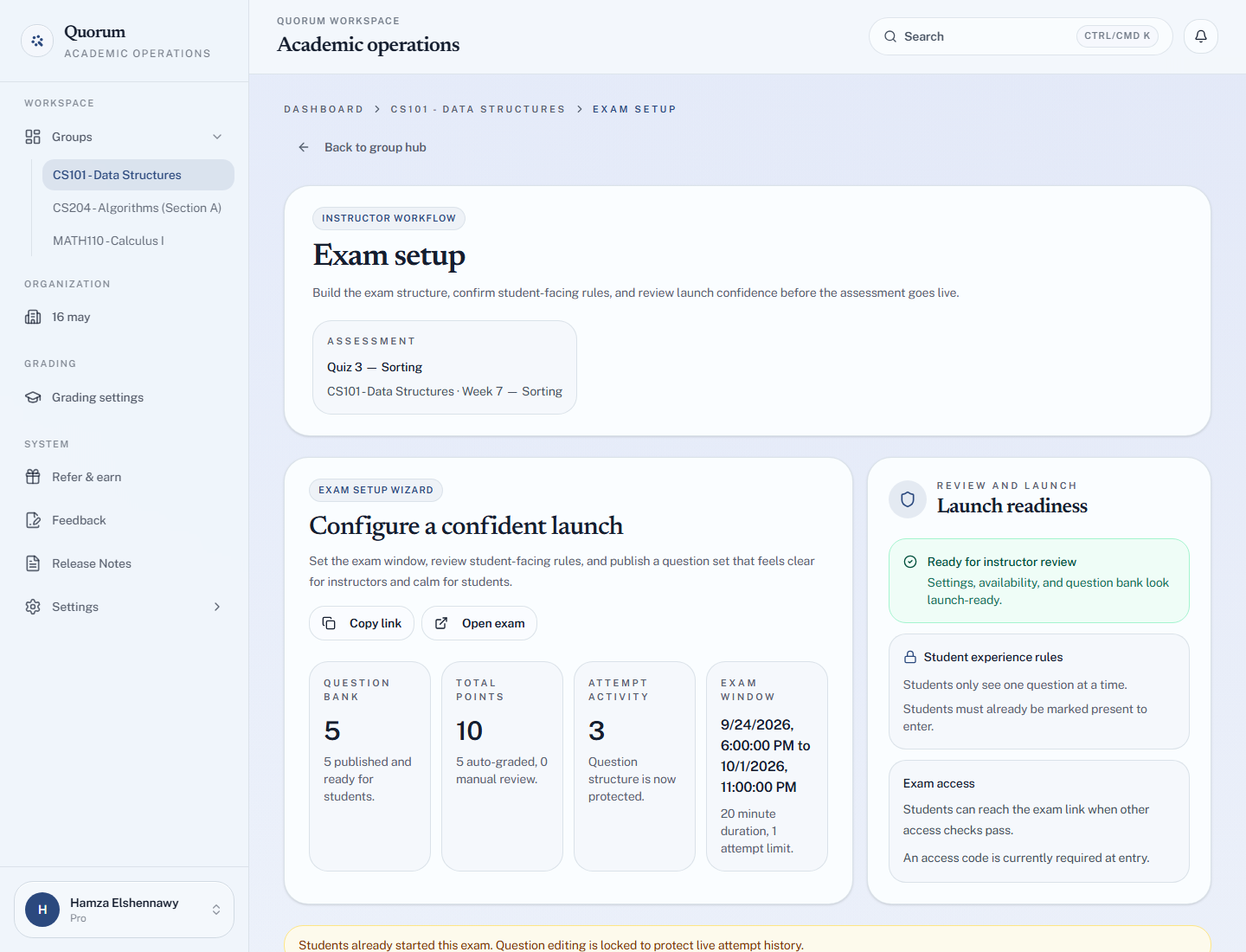
Step 1: Availability and access
This controls whether students can get in at all, when, for how long, and whether a code is needed at the door.
| Setting | Does |
|---|---|
| Exam enabled | Switches the exam on. Until it is, the link does not work |
| Published to students | Makes it visible to students. See enabled and published |
| Start at / End at | The exam window — outside it, nobody can enter |
| Duration (minutes) | How long one attempt lasts once started |
| Max attempts | How many tries each student gets |
| Access code | An optional code students must type to enter |
The window and the duration are different things
The window is when the door is open. The duration is how long a student gets once through it.
A two-hour window with a 45-minute duration means students may start any time in those two hours and each gets 45 minutes. Someone starting at minute 100 gets their full 45 even though the window closes at 120 — the attempt's deadline is set when it starts.
If you want everyone finishing together, make the window short.
Max attempts
One is the usual answer for a real exam. More than one suits practice tests and low-stakes quizzes where the point is learning rather than ranking.
Step 2: Student rules and safeguards
These change the experience of sitting the exam. The app's own guidance is worth repeating: use stricter controls only where they genuinely improve integrity.
| Rule | Effect |
|---|---|
| Shuffle questions | Each attempt sees a different question order |
| Shuffle choices | Answer options are reordered per attempt |
| One-question mode | Questions are presented singly rather than as a page |
| No backtracking | Once a student moves on, they cannot go back |
| Show results immediately | Students see their score on submitting — see below |
| Require attendance | Only students with an attendance record in the linked session can start |
Require attendance is the one to reach for when an exam is sat in the room: tie the assessment to that day's session, take attendance, and a student at home with the link is refused with Attendance is required before starting this exam. Present, late and excused all count as attended.
It only works if the assessment has a linked session. On an assessment with no linked session, the switch does nothing — everyone can start.
The two shuffles are nearly free. They cut casual copying from a neighbour's screen and cost the student nothing.
No backtracking is expensive. It removes an ordinary exam-taking strategy — skip the hard one, come back to it — and it punishes a misclick permanently. Turn it on only when the exam's integrity genuinely depends on sequence, and tell students beforehand, because it is not what they expect.
Results visibility
Show results immediately decides whether a student sees their score on submitting.
Off, scores stay hidden until you release them, and the exam page says as much. See Release results.
Step 3: Final review
A student-facing summary of the window, duration, question set and entry protection, with a readiness check — an exam with no questions, an end time before its start, or an unpublished state is flagged rather than quietly opened.
It also tells you when the question set's points do not match the assessment's Max Score. That is allowed: a submitted exam is scaled to the max score in the grade table, so 5 questions worth 10 points on a quiz out of 20 records a full paper as 20.
Step 4: The question set
Write the questions here. See Write questions.
Once the exam is enabled, Copy link and Open exam appear at the top of the page — the link students use. See Give students access.
Once students have started, question editing locks to protect live attempt history. Get the paper right before opening the door: you cannot fix a typo in question 4 while thirty people are answering it.