Create your account
Registering takes under a minute. Then you confirm your email address from a link Quorum sends you, and the account is ready.
Register
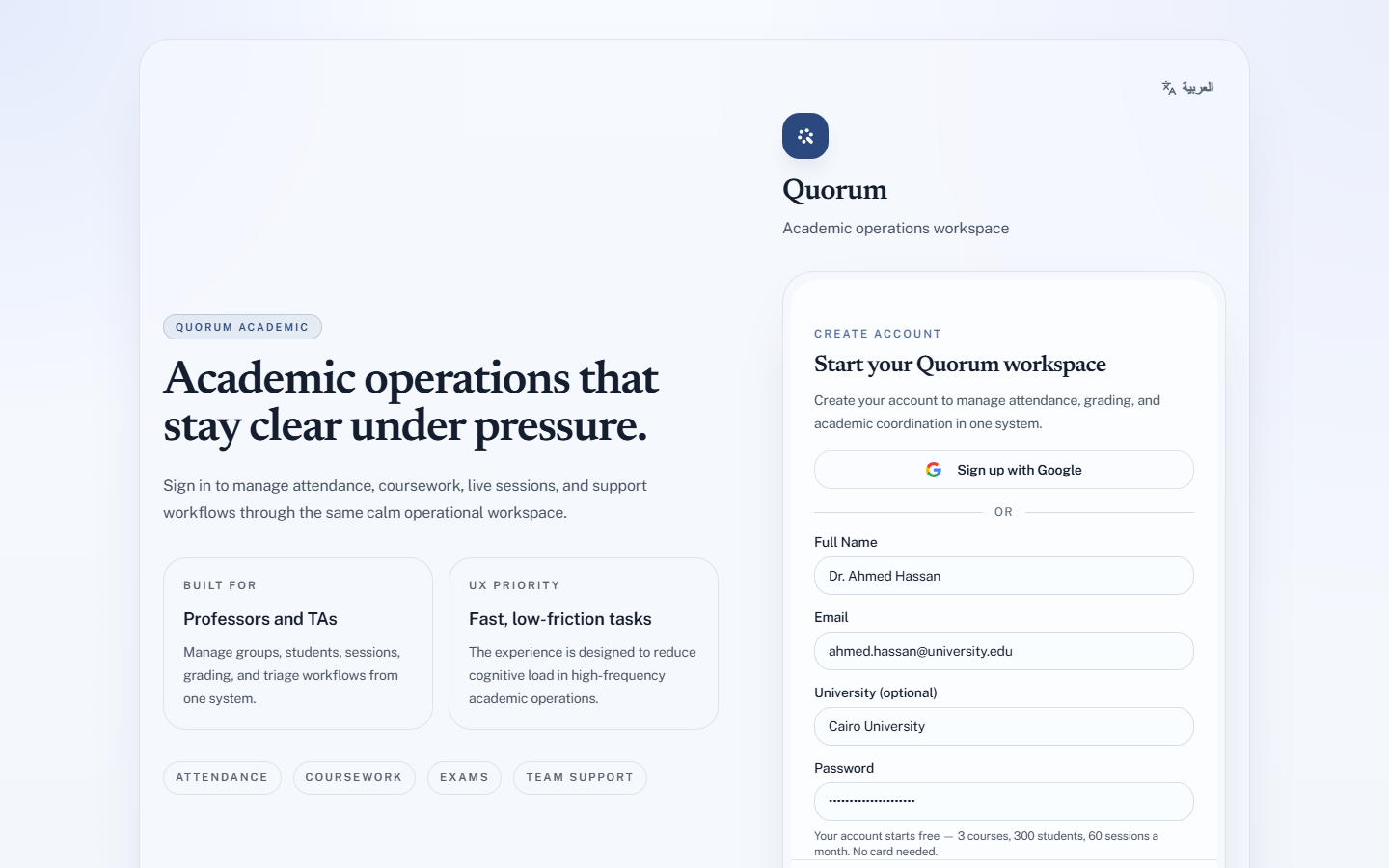
- Go to quorumqr.app and choose Sign Up.
- Fill in Full Name, Email and Password.
- University (optional) is optional. It appears on your profile and nowhere a student will see.
- Choose Create Account.
Confirm your email address
You land on Check your inbox: Quorum has sent a confirmation link to the address you gave.
- Open the email and follow the link.
- On One more tap, choose Confirm my email address.
That signs you in. You cannot sign in until the address is confirmed — try before, and you are told to confirm it first.
- The link works for 24 hours, and only once.
- Nothing arrived? Look in your spam folder, then choose Send it again.
- Typed the address wrong? Choose Use a different address and register again.
- The link has expired or was already used: sign in, and Quorum sends you another.
Your name matters slightly more than it looks: it is what teaching assistants see when you share a group with them.
Or use Google
Continue with Google on either the sign-in or sign-up screen creates the account from your Google profile. There is no password to set and no email to confirm — Google has already vouched for the address.
If you sign in this way and later want a password as well, sign out and use Forgot password on the sign-in page.
What you get without paying
3 courses · 300 students · 60 sessions a month · no card required
Those are account-wide totals, not per-group limits — 300 students spread across all your courses however you like, not 300 in each.
The Free plan is a real plan rather than a demo. You do not need to subscribe to run a term on it. See Choosing a plan for where the walls actually are.
Changing your email later
Settings → Account, under Sign-in & security, choose Change email. That one does send a confirmation link, and the change only takes effect once you follow it. Until then you keep signing in with your current address.