A tour of your dashboard
This page names the things you will see, so that every other page can say "open the group workspace" and mean something specific.
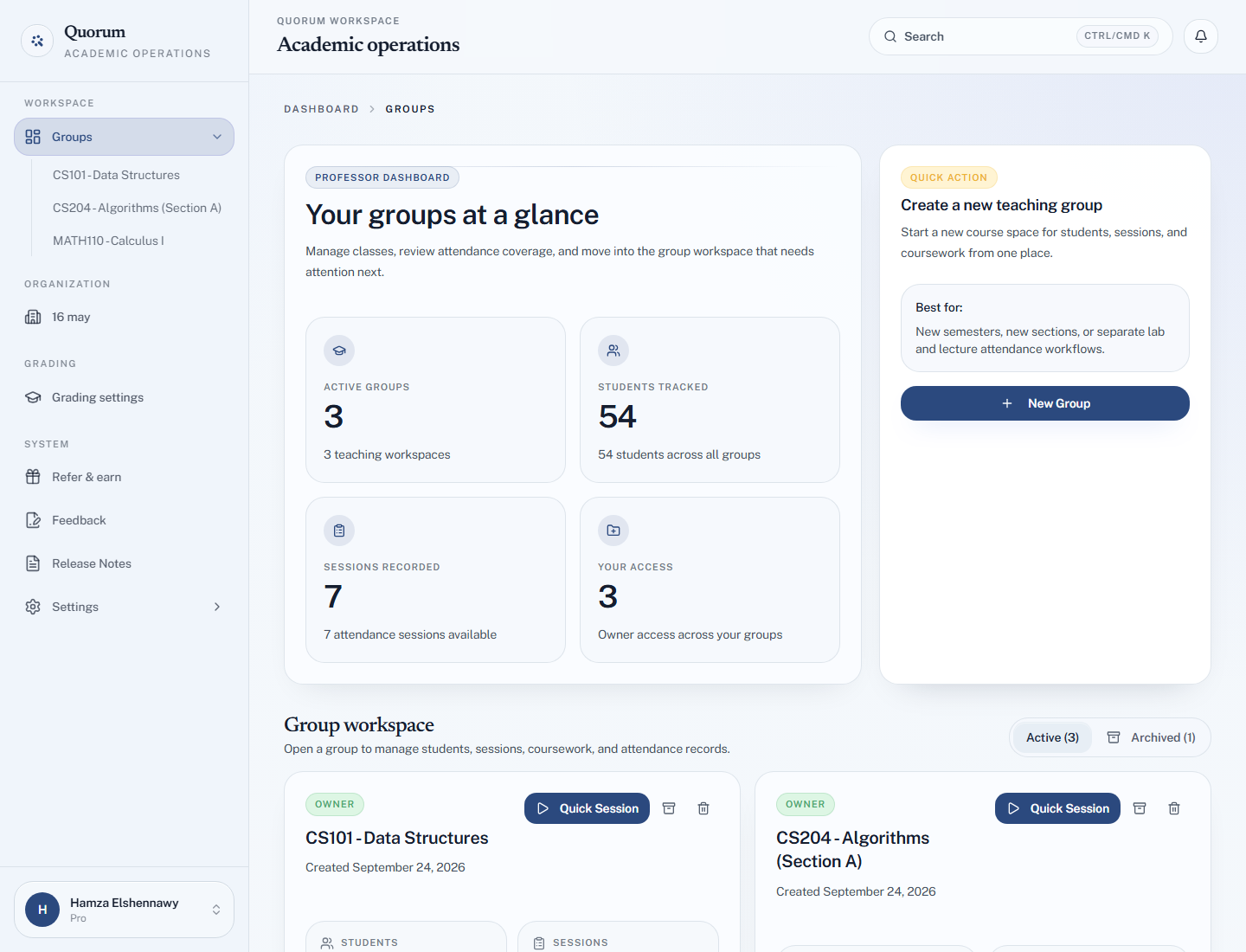
The sidebar
Down the left side, always:
| Section | Holds |
|---|---|
| Workspace → Groups | The dashboard, with your most recent groups listed underneath for one-click access |
| Grading → Grading settings | Each group's attendance grading policy |
| System | Refer & earn, Feedback, Release Notes and Settings |
Your name and plan sit at the bottom.
The four figures
The top of the dashboard, under Your groups at a glance:
| Figure | Counts |
|---|---|
| Active groups | Groups you teach that are not archived |
| Students tracked | Students across all of them |
| Sessions recorded | Attendance sessions across all of them |
| Your access | How many groups you own, and how many you help with as a TA |
Beside them, New Group creates another group. See Create a group.
Your groups
Under Group workspace, each group has a card showing its name, when it was created, your role on it (OWNER or TA), and two counts: Students and Sessions.
Open group workspace takes you into the group — where its students, sessions, coursework and attendance live. Most of your time in Quorum is spent inside a group workspace rather than on the dashboard.
A card you own also has two icon buttons: one archives the group, the other deletes it. Both ask before doing anything. See Archive and restore a group.
Active and archived
Once you have archived something, two filters appear above the cards — Active and Archived, each with a count.
Archiving is end-of-term housekeeping — the group leaves your dashboard but keeps all its data, and stops counting towards your plan. Nothing is deleted.
The setup checklist
A new account gets a Finish setting up chip in the corner, with three steps: create your first group, add your first student, start your first session. It ticks them off as you go and goes away when you are done — it is the same path as Your first ten minutes.
Quick Session
A group card offers Quick Session, which starts a 15-minute session with a rotating code without walking you through the full setup. It is the fastest path from "class has started" to "the code is on screen".
It needs students in the group first. With an empty group you get No Students In This Group instead.
Search
Search in the header, or Ctrl/Cmd + K, looks across groups, students, sessions and coursework at once. Type at least two characters.
Searching a university ID is the fastest way to reach one student's record when you cannot remember which class they are in. See Finding anything fast.
The bell
Notifications from Quorum — billing events, things needing your attention. See Notifications.
Message Quorum
The support chat, in the corner. It reaches a person, not a bot, and replies usually come within a day. See Chat with the Quorum team.
Grading settings
Its own section, not a settings page. It lists every group you have with its own attendance grading policy — what present, late, excused and absent are each worth, and the late threshold. Each group is set and saved separately. See Set what attendance is worth.
Settings
Your account and your plan, in four pages:
| Page | What |
|---|---|
| Account | Your name and university; email and password; sign out everywhere; download your data; close your account. See Your account settings |
| Plan & usage | Your current plan and how much of each limit you have used |
| Payment | How you pay — card or InstaPay |
| Billing | Invoices and billing history |
A TA sees the groups shared with them and can work inside those group workspaces. Billing and team settings are not shown, because they belong to the group's owner. See What a TA can and cannot do.