Your first ten minutes
This is the shortest path from a new account to attendance you can actually look at. Do it with a real class if you have one in front of you; a handful of made-up students works just as well for a rehearsal.
1. Create a group
From the dashboard, choose New Group, name it, and choose Create Group.
Name it the way you would say it out loud — CS101 - Data Structures rather
than cs101. You will be picking it out of a list all term.
2. Add a few students
Open the group, go to its Students tab, then Add Student. Each one needs a Student Name and a University ID.
The university ID is the important field. It is what a student types when they check in, so it has to match what they actually know their ID to be. Everything else is for your benefit.
For a real class, do not type them all in — use Import students from a spreadsheet instead. Three or four by hand is plenty for a rehearsal.
3. Start a session
In the group's Sessions tab, choose Start Session, leave the defaults as they are, and choose Start Session again in the dialog.
If you see No Students In This Group, step 2 has not taken effect. A session needs someone who could plausibly attend it.
Quorum puts a QR code on screen. It rotates every few seconds — a photo of it stops working almost immediately, which is the point.
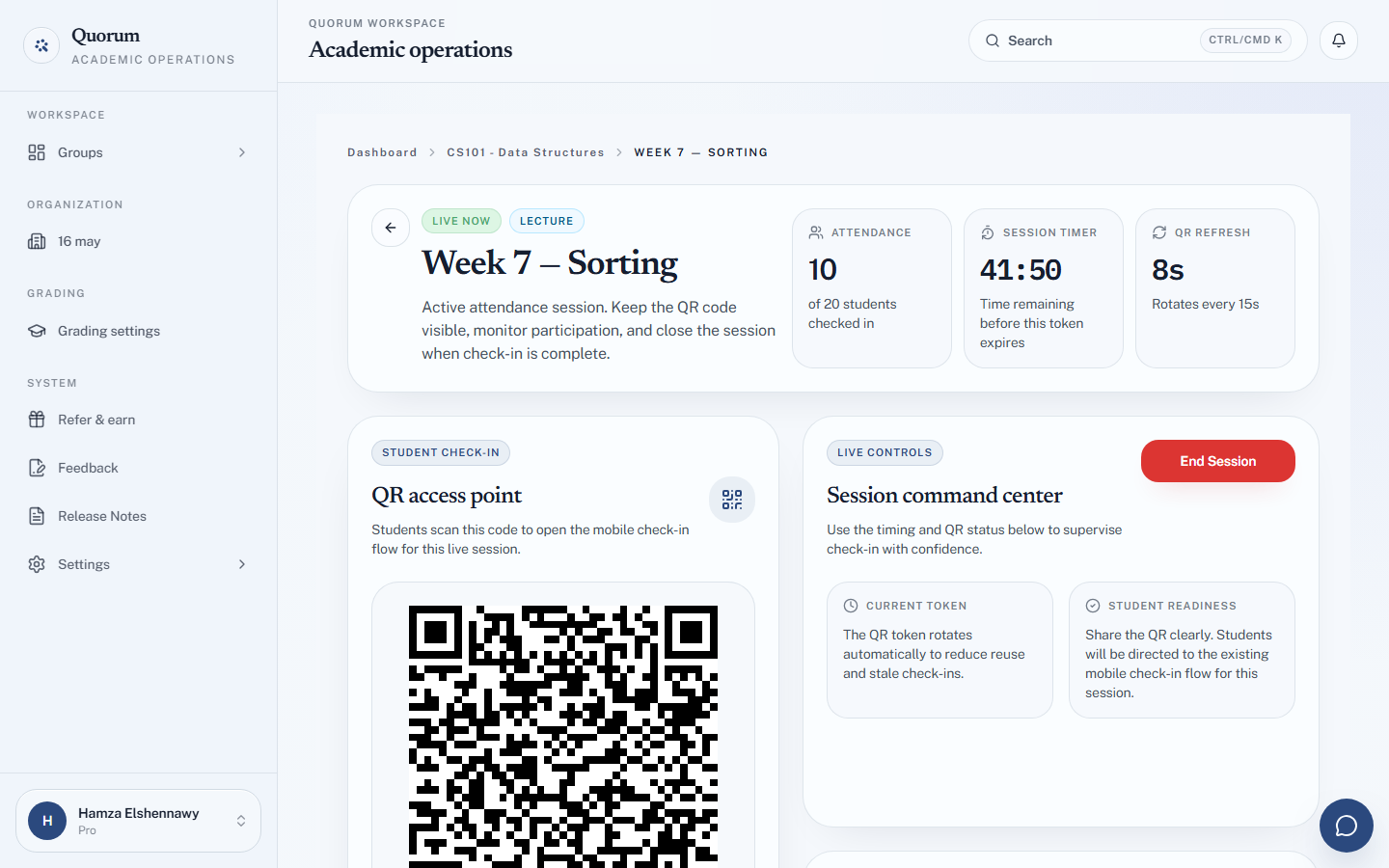
If you are in a real room, choose Show QR Full Screen — a larger, QR-only view that can be scanned from the back row. Esc brings you back.
4. Watch check-ins arrive
Students scan the code, enter their university ID, and the attendance count on your screen goes up as they do.
Try it yourself with your phone. Scanning your own code and checking in as one of your test students is the fastest way to understand what your class is about to experience — and it is worth doing once before you do it in front of eighty people.
5. End the session and look at the record
Choose End Session when check-in is done — it ends at once. Students who never scanned are left absent, and you can fix any of that by hand — see Fix an attendance record.
Open a student from the group to see their record building up. After one session it is not much. After a term it is the thing you will be grateful for.
What you have now
A group          →  your class
Some students    →  identified by university ID
One session      →  with real check-ins in it
A record         →  that keeps building as you teach
That is the whole daily loop. Everything else in this playbook is either a refinement of it — geofencing, late thresholds, grading values — or a separate job built on top: coursework and exams.
Next
Set up the group properly before the term gets going: