Review attendance grades
Your grading policy turns statuses into numbers. This is where you read those numbers across a whole class at once.
Where to look
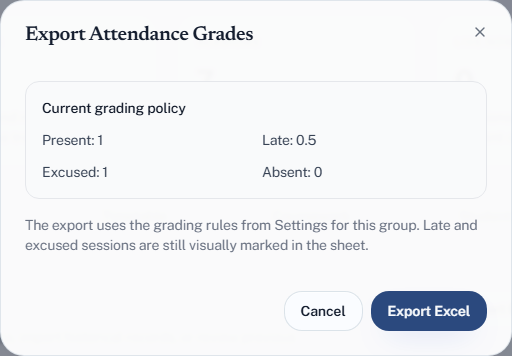
The whole-class view is a spreadsheet, not a screen. In the group's Sessions tab, choose Download Cumulative Attendance. The Export Attendance Grades dialog shows the grading policy it will use; Export Excel downloads the sheet.
The sheet is named Cumulative Attendance, with one row per student:
| Column | Shows |
|---|---|
| Name, University ID | The student |
| One column per session | That session's status, headed with its title, date and lecture or tutorial |
| Present Total | Sessions attended on time |
| Late Total | Sessions arrived late to |
| Excused Total | Absences you excused |
| Lecture Grade | Points from lecture sessions |
| Tutorial Grade | Points from tutorial sessions |
| Grade Total | The whole attendance grade |
Late and excused cells are marked visually, so the totals can be checked rather than taken on trust.
For one student on screen, open their record: it shows their lecture and tutorial averages and flags anyone who needs attention.
Reading it
Lecture and tutorial are split for a reason. A student with a healthy total who has attended no tutorials at all is a different case from one who is evenly half-present, and the combined figure hides that. Where your course runs both, read the two columns before the total.
Late Total is the early-warning column. Absences are obvious; a creeping pattern of lateness is not, and it usually arrives before the absences do. A student accumulating late marks in weeks three and four is worth a word in week five.
Excused Total should match your records. If it is higher than the approvals you remember granting, someone has been marked excused too generously — worth checking before it reaches a final grade.
Spot trouble while there is term left
The point of looking at this in week six rather than week twelve is that something can still be done. Sort the sheet by Grade Total, look at the bottom, and deal with what you find while it is still recoverable.
Using the sheet
Use it for anything Quorum deliberately does not do on screen — sorting a class by attendance, weighting attendance against coursework your own way, or merging with marks kept elsewhere. To fold attendance into the course grade inside Quorum instead, use an attendance category in the breakdown. See also Export grades.
If a number looks wrong
Work backwards. The total is only ever the sum of session statuses under your policy, so one of the two is off:
- Open the student's record and check the statuses session by session.
- A wrong status on an absent or hand-set record is an override. A QR check-in cannot be overridden — if a scanned student should not count, that is a conversation, not an edit.
- Statuses that are all correct but add up wrongly means the policy values are not what you thought — check excused first, since 0 is the default and is easy to leave unset.