Add students one at a time
Adding students by hand suits a small group, and it is how you handle the person who joins after the term has started. For a whole class list, use Import students from a spreadsheet instead.
Add a student
- Open the group and go to its Students tab.
- Choose Add Student.
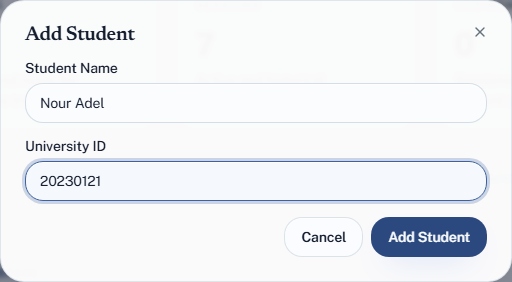
- Fill in Student Name and University ID.
- Choose Add Student in the dialog.
A student added by hand has no email address. Addresses come in with an import, and are what let a student see their own attendance.
Get the university ID right
This is the field that matters. A student types their university ID to check in, and Quorum matches it against what you entered. If the two do not match, the check-in fails and you will be fixing it by hand in front of a full room.
- Enter it exactly as the student knows it, including any leading zeros.
- Be consistent about format across the group.
- It must be unique within the group. The same ID can appear in your other groups — a student taking two of your courses is in both — but not twice in one.
The name is for you. It is what you see in lists and on the attendance record, and getting it slightly wrong costs nothing.
Edit or remove
Edit Student changes a name or a university ID. Correcting an ID is the fix when a student cannot check in because you typed it wrong.
Remove Student takes them out of the group. Only owners can do this.
Removing a student removes them from the group along with their attendance in it. If someone has simply stopped attending, leave them in — an absent student is part of an accurate record.
A TA can add and edit students, but not remove them — that is refused with Only owners can remove students. A removal is recorded in the group's activity log.