Archive and restore a group
When a term ends, archive the group. It leaves your dashboard, stops counting against your plan, and keeps every record it holds.
Archive
- On the dashboard, find the group's card.
- Choose its archive icon button — the first of the two small icons on the card; the other one deletes.
- The dialog says what archiving does. Choose Archive Group to confirm.
The group disappears from your active list immediately.
An archived group that you open shows This Group Is Archived: its records are all there, but it cannot run new sessions until you restore it.
What archiving does
| Leaves your dashboard | Yes |
| Stops counting towards your plan | Yes |
| Keeps students, sessions, attendance, coursework | Yes |
| Can be undone | Yes, any time |
| Deletes anything | No |
The plan point is the useful one. If you are on Free with three groups and next term starts, archiving last term's courses gives you the slots back without paying for anything or losing a single record.
Find archived groups
Once you have archived a group, two filters appear above the group list: Active and Archived, each showing a count. Choose Archived to see what you have put away.
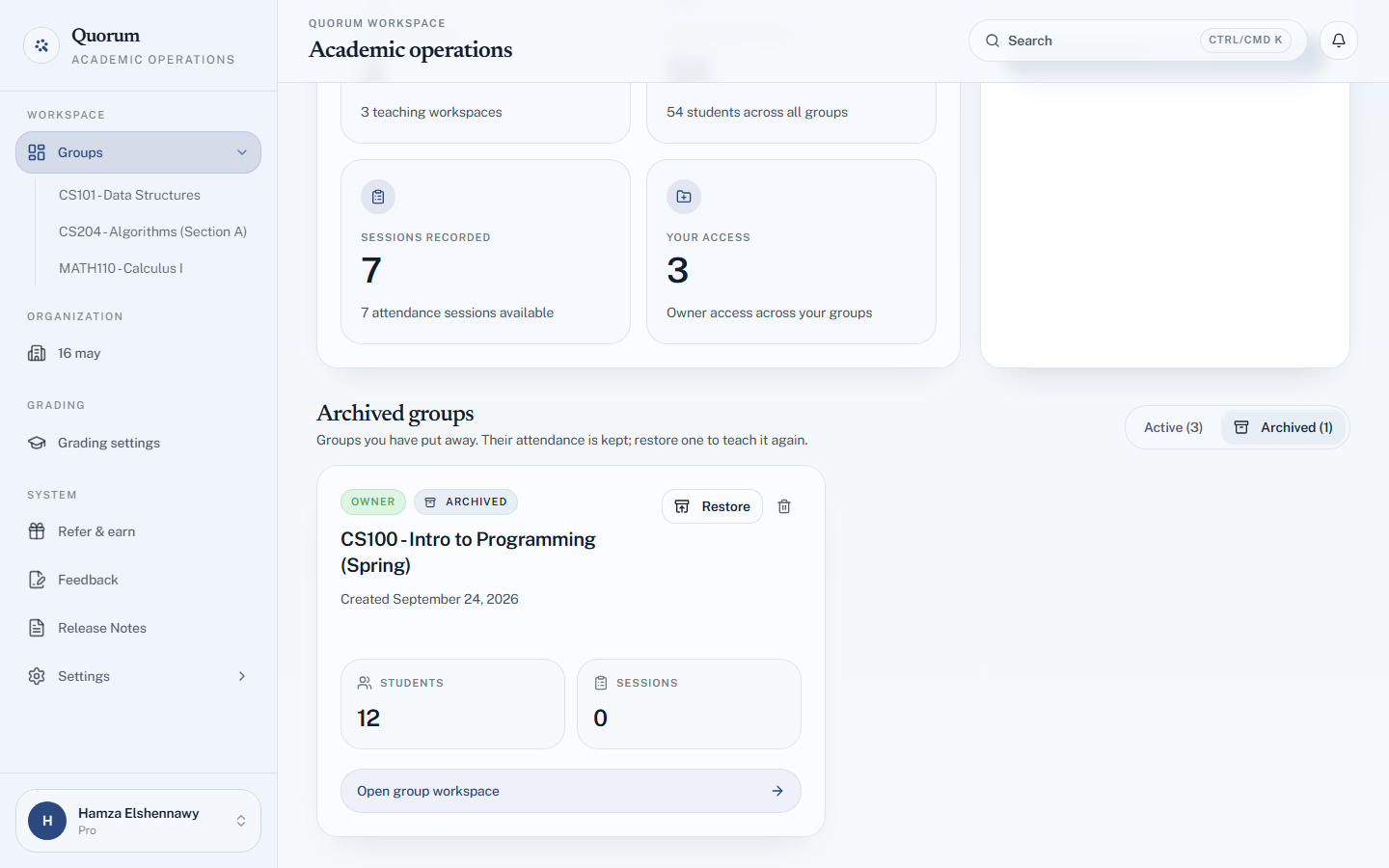
If every group you have is archived, the active list says so rather than looking broken.
Restore
From the archived list, choose Restore — or open the group and choose Restore Group. The group returns to your dashboard exactly as it was — and starts counting against your plan again, so you need a free slot for it.
Archiving versus deleting
| Archive | Delete | |
|---|---|---|
| Records kept | Yes | No |
| Reversible | Yes | No |
| Frees a plan slot | Yes | Yes |
Archiving is what you almost always want. There is no reason to delete a group you have actually taught — a term of attendance records is exactly what you will want when someone queries a grade six months later.
Both are owner-only.