Create a group
A group is one class — one course, one section, one thing you teach. Students, sessions, coursework and exams all belong to a group, and nothing crosses between them.
Create one
- From the dashboard, choose New Group.
- Type a Group name.
- Choose Create Group.
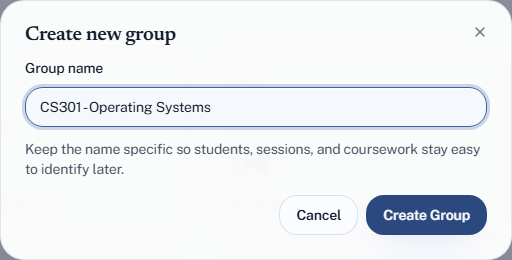
That is the whole thing. A group starts empty; you add students next.
Naming it
Keep the name specific enough to identify at a glance — CS101 - Data Structures rather than cs101 or Monday. You will be picking it out of a
list all term, and so will any TA you share it with.
If you teach the same course to two sections, put the section in the name.
CS101 - Section A and CS101 - Section B are two groups, because they have
different students and different sessions.
One group or several?
One group per set of students who attend together.
| Situation | Groups |
|---|---|
| One course, one cohort | 1 |
| One course, two sections meeting separately | 2 |
| Lectures and tutorials, same students | 1 — sessions carry the distinction |
That last one catches people out. Lectures and tutorials are session categories inside a single group, not separate groups — a session you start is a lecture, one your TA starts is a tutorial. See Lectures and tutorials.
How many you can have
| Plan | Groups |
|---|---|
| Free | 3 |
| Plus | 10 |
| Pro | 20 |
These are the current limits; the pricing page always has the latest. Archived groups do not count. If you have hit the limit and last term's courses are still listed, archive them and the room comes back.