Set a timetable
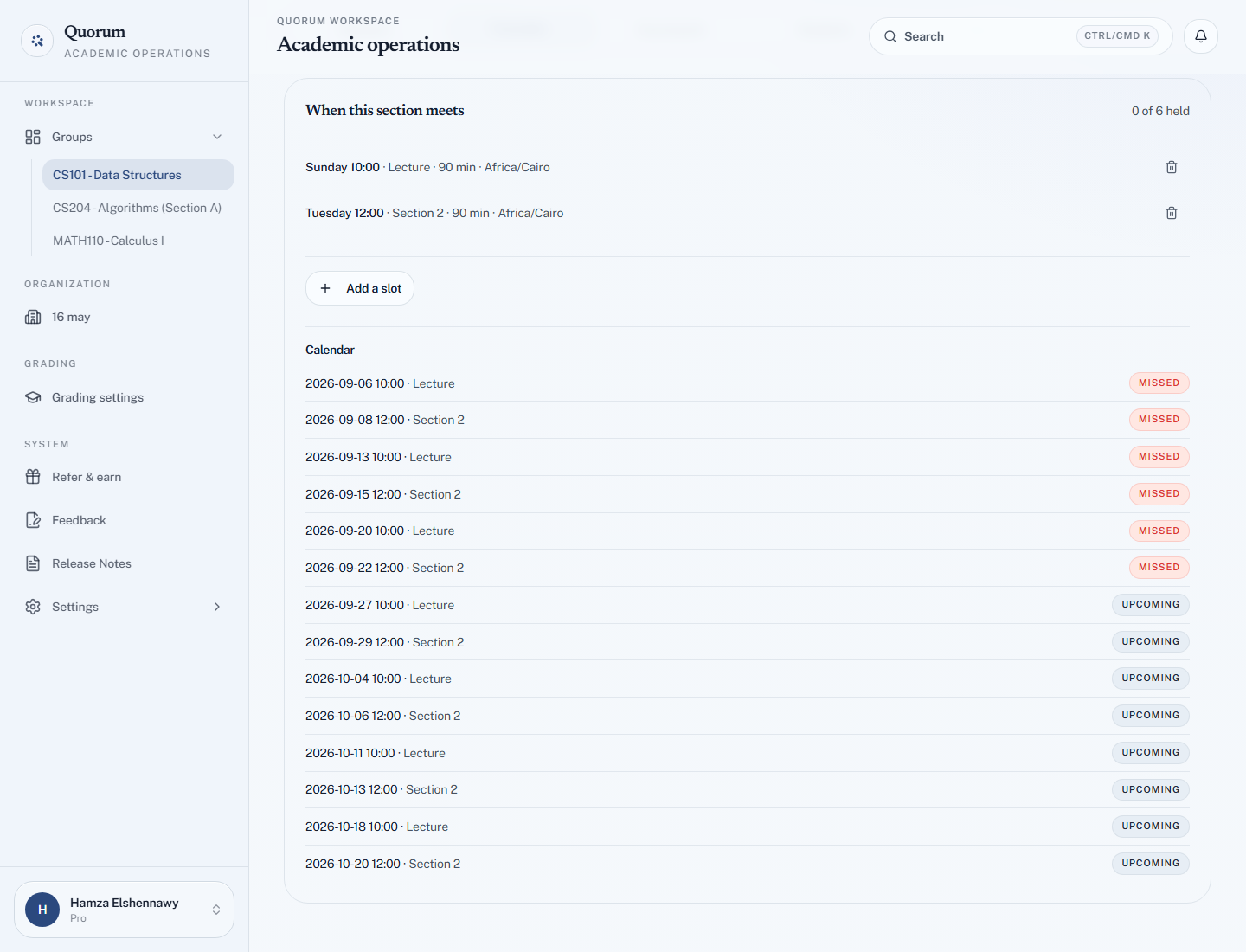
A group's Timetable tab records when the class is meant to meet. Once it is there, Quorum can tell you which of those meetings actually had a session and which did not — a lecture nobody remembered to start no longer looks the same as one that was cancelled.
It is optional. Groups without a timetable work exactly as before.
Add a slot
-
Open the group and go to its Timetable tab.
-
Choose Add a slot.
-
Fill in:
Field Notes Day The day of the week it meets Starts at The start time Minutes How long the class lasts Title (optional) "Lecture", "Section 2", whatever tells it apart From The first date the slot applies Until (optional) The last date. Leave blank to keep meeting until you say otherwise -
Save it.
Add one slot per weekly meeting — a course that meets Sunday and Tuesday has two.
Times are read in your own time zone, which the form names, and they stay put when the clocks change.
Start a class from its slot
The Calendar under your slots lists each meeting with its state:
| State | Means |
|---|---|
| Held | A session was started for it |
| Missed | Its time has passed and no session was started |
| Upcoming | It has not happened yet |
From an hour before a slot until two hours after it ends, the slot shows Start. Pressing it starts a session filed against that meeting and takes you to the live screen, the same as Start Session. Quorum never starts one on its own — a QR code in an empty room is a check-in anyone outside can scan.
A session started from a slot keeps check-in open for the slot's Minutes — the whole class — rather than the short window you would normally choose. If you want a fifteen-minute check-in, use Start Session instead, or end the session yourself once the room has scanned.
A session started from a slot is recorded as a lecture, whoever presses the button.
If someone else on the team has already started that meeting, you are told Somebody has already started this one. It is open now, and the slot turns to Held.
A slot whose window has passed cannot be started late — that would record today's scans against a past week. Start an ordinary session instead.
Held versus missed
The heading reports how many of the meetings so far were held — "9 of 10 held". Only sessions started from the slot count towards it; a session started with Start Session at the same time does not, because Quorum cannot tell which meeting it was for.
So if you use a timetable, start classes from it. Otherwise the report fills up with misses that were not misses.
Take a slot off the timetable
When a class stops meeting — a mid-term reschedule, the end of term — choose Take off the timetable on the slot. Its past meetings stay in the calendar, so the held-versus-missed record for the weeks it ran is kept.
A TA can add slots and start classes from them. Only owners can take a slot off the timetable.