Invite a TA
Team members need a paid plan. Free allows none, Plus allows 5, and Pro has no limit. The current numbers are on the pricing page.
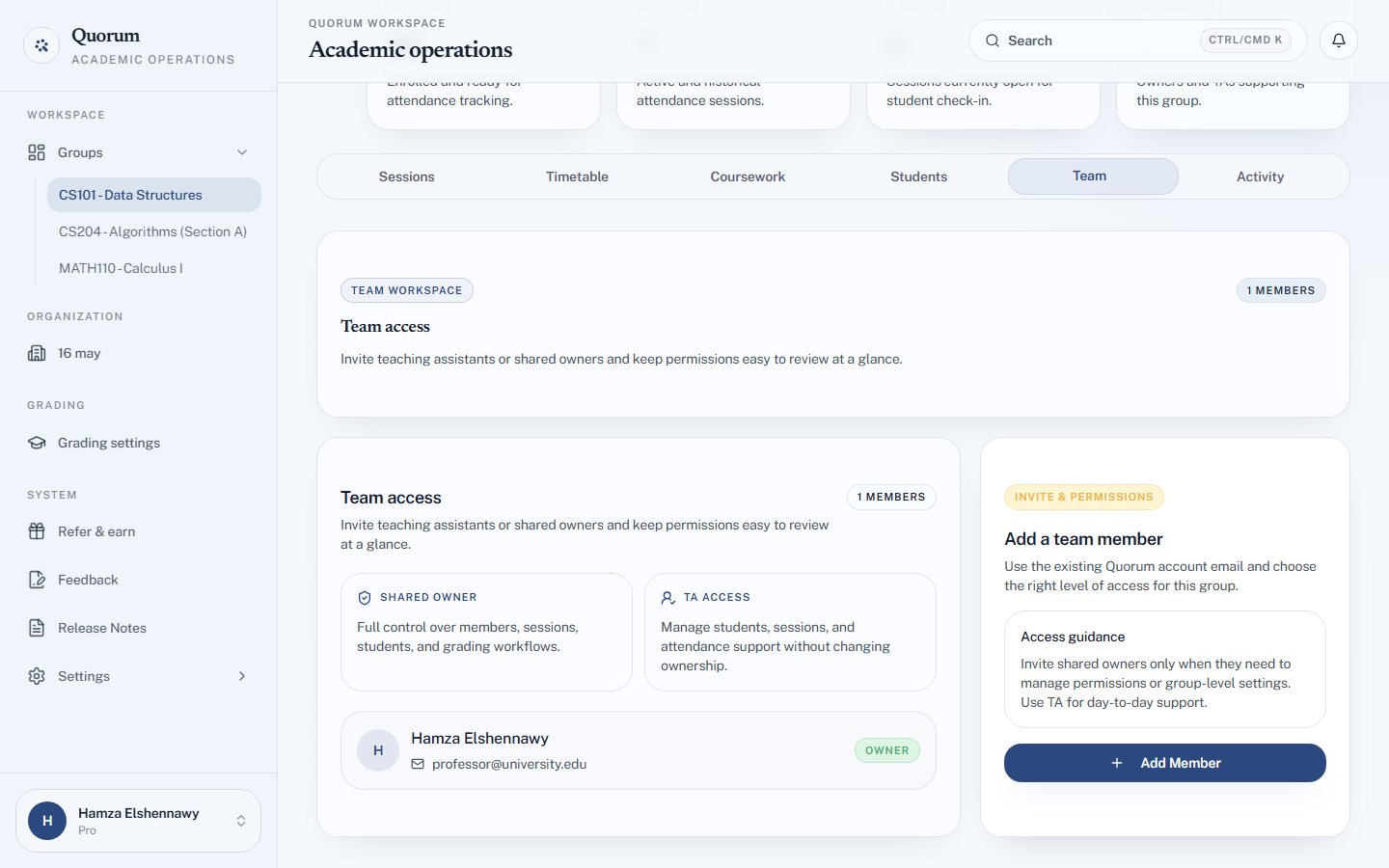
Add a team member
- Open the group and go to its Team tab.
- Choose Add Team Member.
- Enter their Account Email — the address on their Quorum account.
- Pick a Role: TA for day-to-day help, or Shared Owner for someone who co-runs the course. See What a TA can and cannot do.
- Choose Add Member.
They need a Quorum account first. Team members attach to an existing account rather than creating one, so if they have not registered you will see No existing Quorum account was found for that email. Ask them to sign up — it is free — and then add them.
The email must match their account exactly.
What they get
The group appears in their dashboard, and they can work in it immediately. There is nothing for them to accept.
Your name is what they see as the group's owner, which is worth checking is actually your name under Settings.
Before you invite
Choose the role deliberately. A TA can run sessions, fix attendance, manage the roster and enter grades, but cannot delete anything, cannot touch exams, and cannot change the group or its team. A Shared Owner can do all of that. What a TA can and cannot do has the full matrix.
For almost everyone helping with a course, TA is the right answer.
Limits
| Plan | Team members |
|---|---|
| Free | None |
| Plus | 5 |
| Pro | No limit |
The count is across your account, not per group. On Plus, five people is five people however many groups you spread them over.
Their work bills to you
Sessions a team member runs count against your monthly quota, and students they import count against your student limit. That is the intended design — you own the group, so you pay for it — but it is worth knowing before you hand a busy course to two assistants on a plan sized for one person.